
No. 02: Put your game ticket in your phone's wallet before you leave the house
Stadium cell signal is a coin flip. A ticket saved to your phone's wallet doesn't need it.
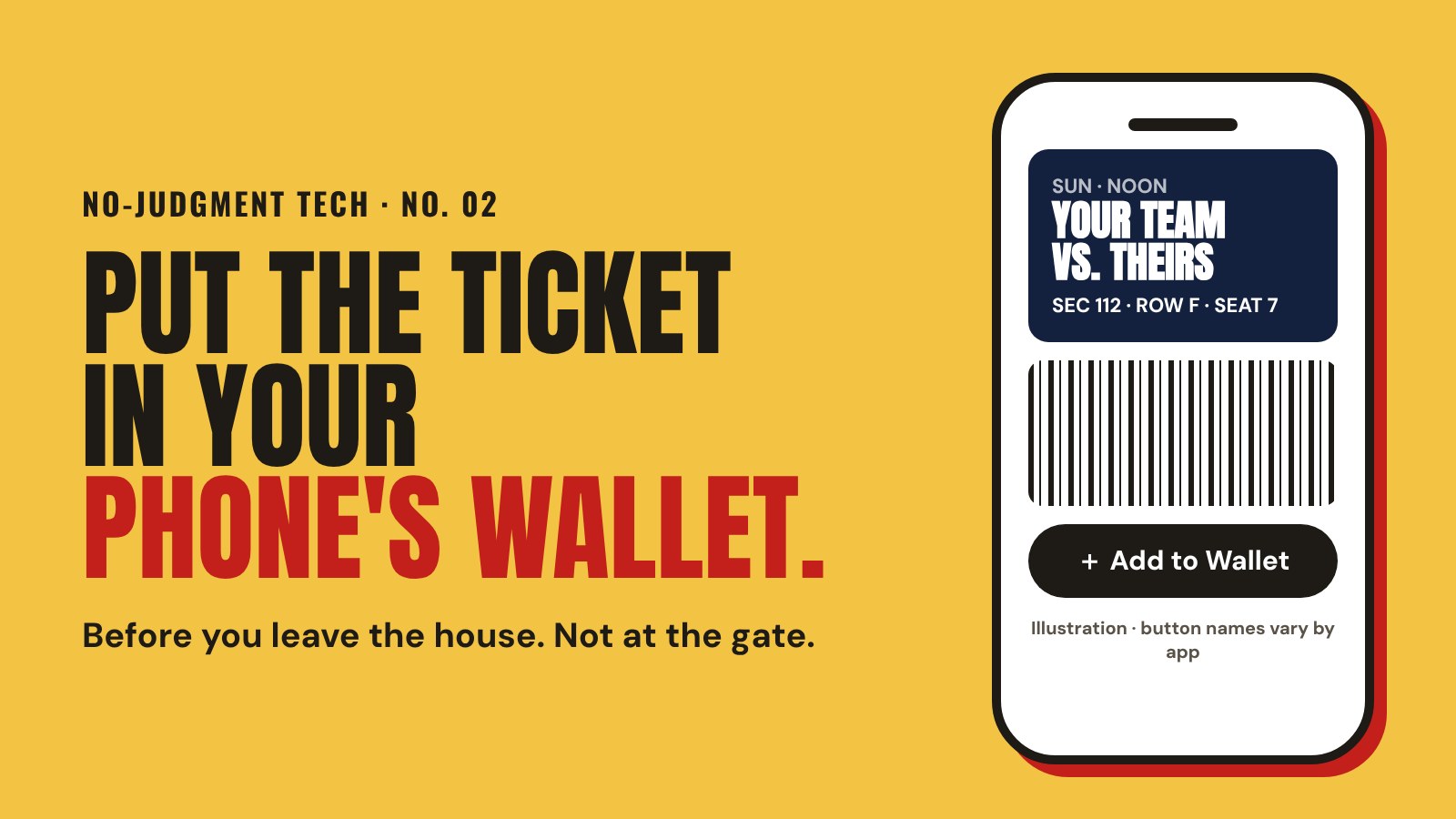
Fifty thousand people. One cell tower. You at the gate with the ticket app spinning.
You can skip that whole scene. Most ticket apps let you save the ticket to your phone's wallet, and a wallet ticket opens even when the signal doesn't. It takes about a minute. Do it at home.
On an iPhone
1. Open the app your ticket is in (Ticketmaster, SeatGeek, the team app). 2. Find the game under your tickets or upcoming events. 3. Open the ticket and tap Add to Apple Wallet. 4. Tap Add on the screen that pops up.
Your ticket now lives in the Wallet app, the one with your cards.
On an Android
1. Open the app your ticket is in. 2. Find the game and open the ticket. 3. Tap Save to Google Wallet (some apps say Add to Google Pay). 4. Follow the prompt to save it.
At the gate
- Open your wallet, not the ticket app.
- On an iPhone, double-click the side button to pull the wallet up fast.
- Turn your screen brightness up if they're scanning.
- If the gate has a tap reader, hold the top of your phone near it.
If you don't see the button
Not every ticket can go in the wallet. Some venues and some resale tickets only work inside the app. If there's no wallet button:
- Open the ticket in the app before you leave the house, while you have Wi-Fi.
- Leave the app open on the ticket.
- Don't screenshot it. Most stadium tickets use a code that keeps changing, and a screenshot won't scan.
Sending one to a friend
That's No. 01. Transfer it, don't text a picture.
Hank
- tickets
- howto
- gameday
Talk back
0 commentsNo comments yet. Say something, neighbor.